anikeep
  • Multimedia
    • screen record

      Screen Recorder

      Record computer screen without time limit

    • audio record

      AI Audio Recorder

      Record all sounds in high quality

    • Subtitle-editor

      AI Subtitle Editor

      Edit , create subtitles

    • video-cutter

      AI Video Cutter

      Cut video to small clips without re-encoding

    • video-editor

      AI Video Editor

      Crop, effect, subtitle, adjust audio, speed, etc.

    • video-compressor

      AI Video Compressor

      Compress videos with AI to reduce file size

    • video-repair

      AI Video Repair

      Repair corrupted video and audio files

    • video-converter

      Video Converter

      Convert video to any format at 60X speed

  • Utility
    • videbox

      AI VideoKit

      Record, edit, convert, and repair any media file

    • audio-converter

      Audio Converter

      Convert audio files to any format

    • audio-joiner

      AI Audio Joiner

      Merge multiple audio files into one

    • media-player

      Media Player

      Play various multimedia files smoothly

    • screenshot

      Screenshot

      Capture, edit and annotate images

    • image-converter

      AI Image Converter

      Convert HEIC, LivePhoto and more

  • Support
  • Download
  • Store
Overview
Guide
Tech Spec
Trim Video
  • Trim MP4
  • Trim MP3
  • Cut Video Online
  • Cut Audio
  • VLC
Video Editing
  • Merge MP4
  • Add Watermark
  • Add Subtitles
  • iMovie
  • Windows 10
Recording Tips
  • Record Screen
  • Record Audio
  • Game Recorder
  • Record Zoom Meeting
Convert Video
  • Convert DVD
  • Convert MP4
  • Convert MP3
  • Convert AVI
  • Convert MKV
  • Convert MOV
Find More Tips

User Guide of AI VideoKit (Video Repair)

Under what circumstances was your video or audio file damaged? Indeed, there are various possible causes, such as computer system sudden crash, file transfer error, downloading interruption, virus attack, incompatible format conversion, memory card error, etc. No matter which situation you encounter, AI VideoKit is able to help fix broken videos with a high success rate, including audio video sync problem, choppy video playback, unknown unplayable issue and more. If you resort to this fabulous video repair software, you can simply download an appropriate version here:

Free Trial Free Trial
Buy Now Buy Now
  • AI VideoKit User Guide
    • Get Started
    • Screen Recorder
      • Screen Recording
      • Game Recording
      • Webcam Recording
      • Window Recording
    • Audio Recorder
    • Video Editor
      • Crop Video
      • Apply Effect
      • Add Subtitle
      • Adjust Audio
      • Change Speed
      • Trim Video
      • Merge Video
      • Convert Video
      • Compress Video
      • Repair Video
    • Watermark Editor
      • Add Watermark to Video
      • Remove Watermark from Video
      • Add Watermark to Image
      • Remove Watermark from Image
    • Subtitle Editor
    • Freeware
      • Media Player
      • Audio Converter
      • Audio Joiner
      • HEIC Converter
      • LivePhoto Converter
  • Download Now Download Now
    Buy Now Buy Now

How to Repair Broken Videos on PC/Mac

Step 1 Launch Video Repair and Add Corrupted Videos

Install and launch the program of AI VideoKit on your computer. Then you can navigate to "Toolbox" to open "Video Repair" tool. It's available to hit "Add file(s)" button in the top left corner, click the central area of main interface or quickly drag-n-drop target damaged videos to import to the program.
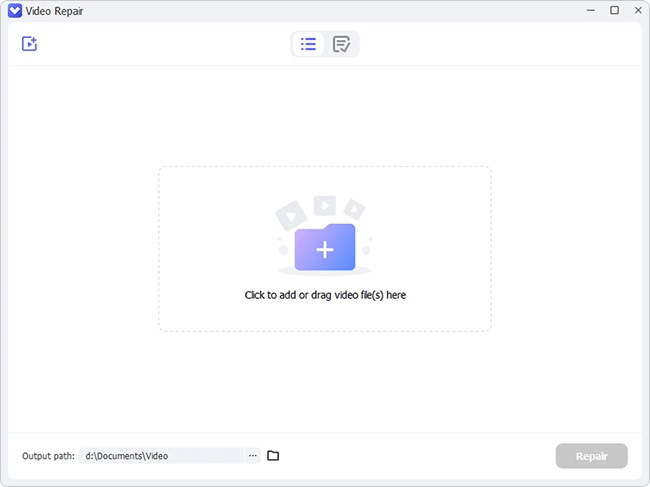
add files to repair

Note: AI VideoKit allows you to repair not only videos but also audios simultaneously. You can import multiple corrupted files with different formats to repair each time.

Step 2 Start to Repair Videos/Audios

Go to the lower right corner and click the blue "Repair" button to initiate a repair assignment. You can visually see the repair progress and status of each file. When AI VideoKit finishes fixing all corrupted videos and audios, it'll inform you of the actual completed and failed repair files respectively. Even better, you're entitled to check the reason for the failed one.
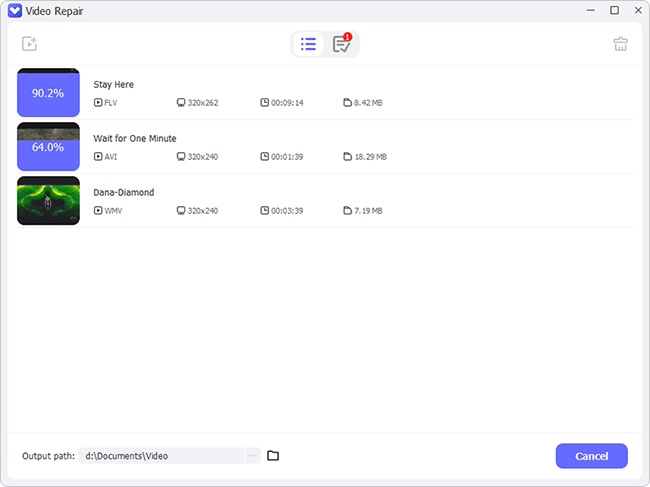
start to repair videos audios

Step 3 Check Repaired Videos/Audios

This program will show all completed files in Finished window and give you permission to play them. As long as these repaired files are playable without errors, you can handily go to local location path and browse them.

Anikeep logo

Newsletter

Support
  • Support Center
  • How-To
  • Refund Policy
  • Free License
Star Products
  • AI VideoKit
  • AI Video Editor
  • Screen Recorder
Company
  • About Us
  • Terms & Conditions
  • Privacy
  • Contact Us

Copyright © 2026 Anikeep Studio. All Rights Reserved.

Anikeep uses cookies to ensure you get the best experience on our website. Learn More