anikeep
  • Multimedia
    • screen record

      Screen Recorder

      Record computer screen without time limit

    • audio record

      AI Audio Recorder

      Record all sounds in high quality

    • Subtitle-editor

      AI Subtitle Editor

      Edit , create subtitles

    • video-cutter

      AI Video Cutter

      Cut video to small clips without re-encoding

    • video-editor

      AI Video Editor

      Crop, effect, subtitle, adjust audio, speed, etc.

    • video-compressor

      AI Video Compressor

      Compress videos with AI to reduce file size

    • video-repair

      AI Video Repair

      Repair corrupted video and audio files

    • video-converter

      Video Converter

      Convert video to any format at 60X speed

  • Utility
    • videbox

      AI VideoKit

      Record, edit, convert, and repair any media file

    • audio-converter

      Audio Converter

      Convert audio files to any format

    • audio-joiner

      AI Audio Joiner

      Merge multiple audio files into one

    • media-player

      Media Player

      Play various multimedia files smoothly

    • screenshot

      Screenshot

      Capture, edit and annotate images

    • image-converter

      AI Image Converter

      Convert HEIC, LivePhoto and more

  • Support
  • Download
  • Store
Overview
Guide
Tech Spec
Trim Video
  • Trim MP4
  • Trim MP3
  • Cut Video Online
  • Cut Audio
  • VLC
Video Editing
  • Merge MP4
  • Add Watermark
  • Add Subtitles
  • iMovie
  • Windows 10
Recording Tips
  • Record Screen
  • Record Audio
  • Game Recorder
  • Record Zoom Meeting
Convert Video
  • Convert DVD
  • Convert MP4
  • Convert MP3
  • Convert AVI
  • Convert MKV
  • Convert MOV
Find More Tips

User Guide of AI VideoKit (Video Cutter)

AI VideoKit offers professional video cutter to cut and trim videos according to your own needs. No matter what format your file is and how large the size is, you are allowed to effortlessly remove unwanted footages without worrying about quality loss. Now you can download this tool for PC or Mac, which is 100% clean and secure.

Free Trial Free Trial
Buy Now Buy Now
  • AI VideoKit User Guide
    • Get Started
    • Screen Recorder
      • Screen Recording
      • Game Recording
      • Webcam Recording
      • Window Recording
    • Audio Recorder
    • Video Editor
      • Crop Video
      • Apply Effect
      • Add Subtitle
      • Adjust Audio
      • Change Speed
      • Trim Video
      • Merge Video
      • Convert Video
      • Compress Video
      • Repair Video
    • Watermark Editor
      • Add Watermark to Video
      • Remove Watermark from Video
      • Add Watermark to Image
      • Remove Watermark from Image
    • Subtitle Editor
    • Freeware
      • Media Player
      • Audio Converter
      • Audio Joiner
      • HEIC Converter
      • LivePhoto Converter
  • Download Now Download Now
    Buy Now Buy Now

Part 1. How to Cut and Trim Videos Losslessly

Step 1 Add Video Files to Program

Simply open AI VideoKit and click "Video Cutter" under "Video" section to run the tool. You can import video files by clicking the "+" button in the center or dragging media files directly to the program.
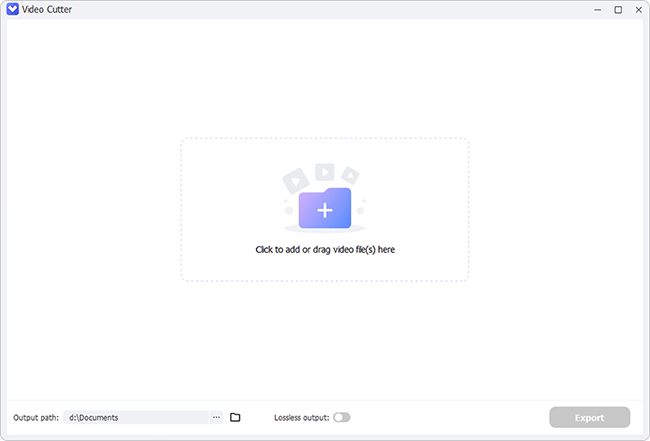
add video files to program

Step 2 Select Segments and Cut Video(s)

All target files will be listed in the right column and you can select any one to play. Simply stop anywhere you want and divide the video to smaller segments with "Split" tool. It's available to repeat this operation and create as many clips as you need. Then handily click and select certain part(s) for quickly removal. To enhance the cutting accuracy, you can hit "Zoom To Fit" tool to zoom in the timeline, or set specific start time to millisecond.
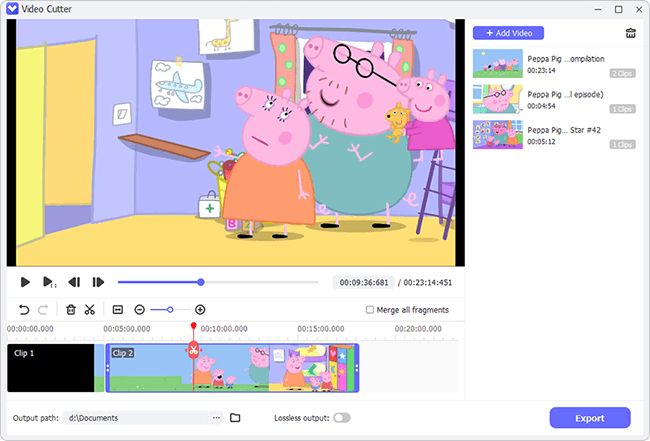
choose segments and cut videos

You can have a real-time preview on the source in this step. Make sure what you split is matchable with your requirements.

Step 3 Set How to Output Video(s)

If you work with multiple files at once or split many clips from the same video source, you can check "Merge all fragments" to combine them together as per your actual situation. Besides, it's possible to keep "Lossless output" by enabling the option at the bottom.
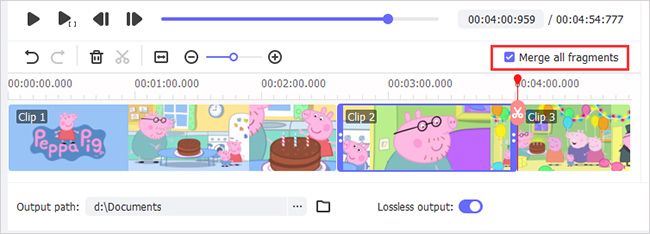
output formats

Step 4 Start to Export Video(s)

When you complete all settings, click "Export" button at the right bottom to save video(s) as local file(s). After a while, a window with destination folder will pop up, allowing you to check and play all final videos.
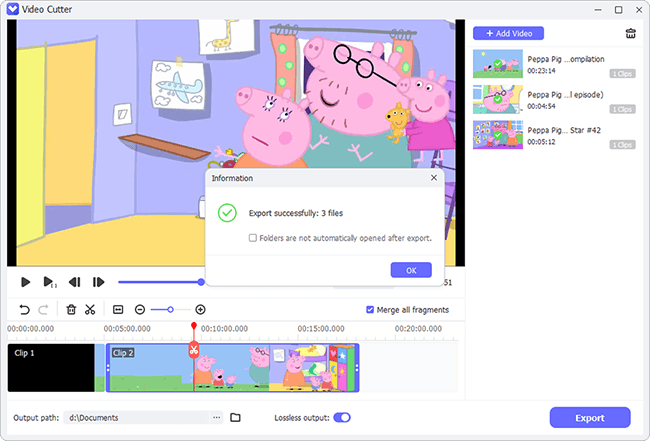
output formats

Part 2. How to Cut and Trim Audios Easily

Step 1 Add Audio Files to Program

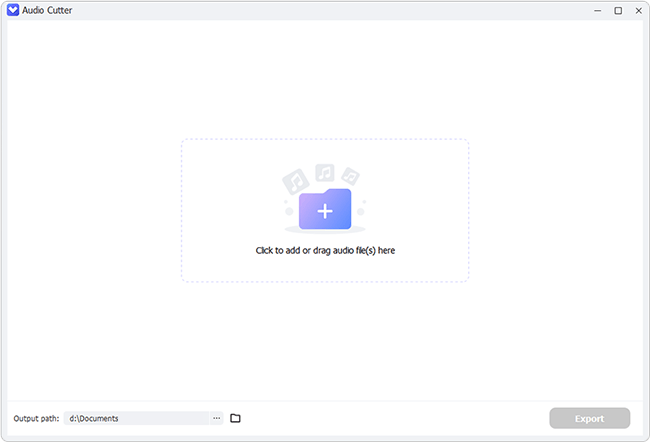
Click the downloaded program of AI VideoKit to run it on your computer and open "Audio Cutter" under "Audio" section. You can click to add or drag audio file(s) to the main interface handily.
add audio files to program

Step 2 Get Certain Part(s) to Remove

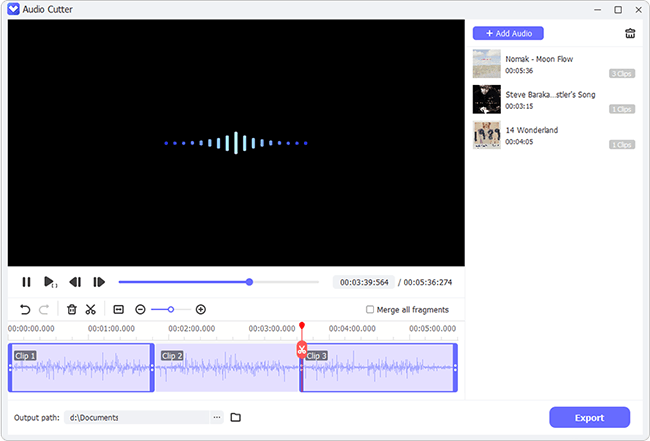
The selected audio files will be displayed in the right list and you can pick up whichever you want to process. Play the audio, stop at a definite time point, and hit the "Split" tool to cut your large file into smaller fragments. You can alternatively enter a specific start time with precision to millisecond for positioning. Then remove any chosen part(s).
choose segments and cut audios

Note: To combine the rest of audio parts together, you can tick the checkbox of "Merge all fragments".

Step 3 Export Shortened Audio File(s)

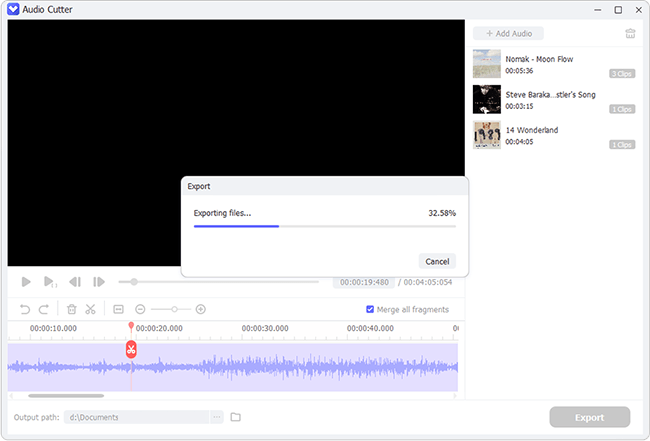
Simply click on the Export" button at the right bottom to output processed audio(s). After a short time, you'll be prompted by a pop-up window with all completed local file(s).

export audio
Anikeep logo

Newsletter

Support
  • Support Center
  • How-To
  • Refund Policy
  • Free License
Star Products
  • AI VideoKit
  • AI Video Editor
  • Screen Recorder
Company
  • About Us
  • Terms & Conditions
  • Privacy
  • Contact Us

Copyright © 2026 Anikeep Studio. All Rights Reserved.

Anikeep uses cookies to ensure you get the best experience on our website. Learn More