anikeep
  • Multimedia
    • screen record

      Screen Recorder

      Record computer screen without time limit

    • audio record

      AI Audio Recorder

      Record all sounds in high quality

    • Subtitle-editor

      AI Subtitle Editor

      Edit , create subtitles

    • video-cutter

      AI Video Cutter

      Cut video to small clips without re-encoding

    • video-editor

      AI Video Editor

      Crop, effect, subtitle, adjust audio, speed, etc.

    • video-compressor

      AI Video Compressor

      Compress videos with AI to reduce file size

    • video-repair

      AI Video Repair

      Repair corrupted video and audio files

    • video-converter

      Video Converter

      Convert video to any format at 60X speed

  • Utility
    • videbox

      AI VideoKit

      Record, edit, convert, and repair any media file

    • audio-converter

      Audio Converter

      Convert audio files to any format

    • audio-joiner

      AI Audio Joiner

      Merge multiple audio files into one

    • media-player

      Media Player

      Play various multimedia files smoothly

    • screenshot

      Screenshot

      Capture, edit and annotate images

    • image-converter

      AI Image Converter

      Convert HEIC, LivePhoto and more

  • Support
  • Download
  • Store
Overview
Guide
Tech Spec
Trim Video
  • Trim MP4
  • Trim MP3
  • Cut Video Online
  • Cut Audio
  • VLC
Video Editing
  • Merge MP4
  • Add Watermark
  • Add Subtitles
  • iMovie
  • Windows 10
Recording Tips
  • Record Screen
  • Record Audio
  • Game Recorder
  • Record Zoom Meeting
Convert Video
  • Convert DVD
  • Convert MP4
  • Convert MP3
  • Convert AVI
  • Convert MKV
  • Convert MOV
Find More Tips

User Guide of AI VideoKit (Video Compressor)

Are you still worrying about the file size being too large that as a result, takes up too much disk space? Try to compress your specific videos to effectively reduce the file size now! You can get the utmost out of AI VideoKit here to compress multiple files effortlessly. It enables you to initiate batch compression at 40X high speed and preview videos handily. Just choose a compatible version of this program to get started.

Free Trial Free Trial
Buy Now Buy Now
  • AI VideoKit User Guide
    • Get Started
    • Screen Recorder
      • Screen Recording
      • Game Recording
      • Webcam Recording
      • Window Recording
    • Audio Recorder
    • Video Editor
      • Crop Video
      • Apply Effect
      • Add Subtitle
      • Adjust Audio
      • Change Speed
      • Trim Video
      • Merge Video
      • Convert Video
      • Compress Video
      • Repair Video
    • Watermark Editor
      • Add Watermark to Video
      • Remove Watermark from Video
      • Add Watermark to Image
      • Remove Watermark from Image
    • Subtitle Editor
    • Freeware
      • Media Player
      • Audio Converter
      • Audio Joiner
      • HEIC Converter
      • LivePhoto Converter
  • Download Now Download Now
    Buy Now Buy Now

Part 1. How to Compress Video to Reduce File Size

Step 1 Open Video Compressor to Add Videos

Simply run AI VideoKit on your desktop, go for "Video" section and launch "Video Compressor". Click the "Add file(s)" button at the top of the program or directly drag the media file to designated area to import videos.
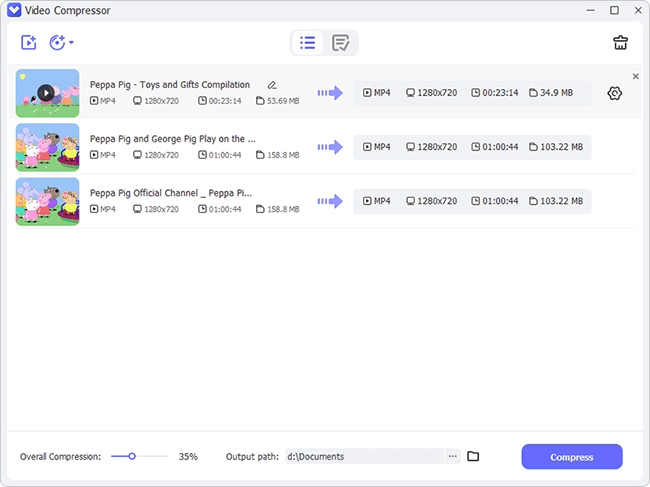
add files to compress

Step 2 Select File Size or Percentage to Compress Videos

The video you imported will be displayed in the list, showing thumbnail, duration, resolution and file size. You can straightly drag the slider of Overall Compression in the lower left corner to compress all files in batches according to the specified compression percentage. Alternatively, you can individually designate one file, click the gear "Compression settings" button behind it, and manually set a desired ratio to compress. Meanwhile, you're able to change, resolution, bitrate, frame rate and preview the video.
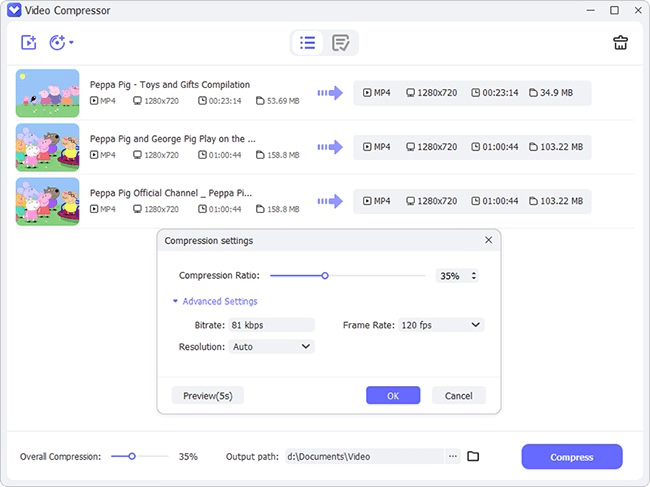
set compress ratio

Step 3 Start to Compress and Save Videos

Now, click on the "Output path" button to browse and choose a file location. Then, hit the "Compress" at the right bottom to begin compressing and saving videos locally. You can later have a check in the "Finished" window.
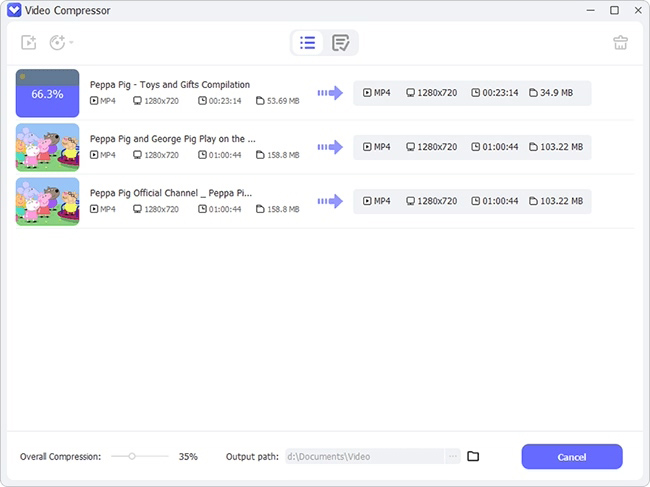

start to compress files
Anikeep logo

Newsletter

Support
  • Support Center
  • How-To
  • Refund Policy
  • Free License
Star Products
  • AI VideoKit
  • AI Video Editor
  • Screen Recorder
Company
  • About Us
  • Terms & Conditions
  • Privacy
  • Contact Us

Copyright © 2026 Anikeep Studio. All Rights Reserved.

Anikeep uses cookies to ensure you get the best experience on our website. Learn More