anikeep
  • Multimedia
    • screen record

      Screen Recorder

      Record computer screen without time limit

    • audio record

      AI Audio Recorder

      Record all sounds in high quality

    • Subtitle-editor

      AI Subtitle Editor

      Edit , create subtitles

    • video-cutter

      AI Video Cutter

      Cut video to small clips without re-encoding

    • video-editor

      AI Video Editor

      Crop, effect, subtitle, adjust audio, speed, etc.

    • video-compressor

      AI Video Compressor

      Compress videos with AI to reduce file size

    • video-repair

      AI Video Repair

      Repair corrupted video and audio files

    • video-converter

      Video Converter

      Convert video to any format at 60X speed

  • Utility
    • videbox

      AI VideoKit

      Record, edit, convert, and repair any media file

    • audio-converter

      Audio Converter

      Convert audio files to any format

    • audio-joiner

      AI Audio Joiner

      Merge multiple audio files into one

    • media-player

      Media Player

      Play various multimedia files smoothly

    • screenshot

      Screenshot

      Capture, edit and annotate images

    • image-converter

      AI Image Converter

      Convert HEIC, LivePhoto and more

  • Support
  • Download
  • Store
Overview
Guide
Tech Spec
Trim Video
  • Trim MP4
  • Trim MP3
  • Cut Video Online
  • Cut Audio
  • VLC
Video Editing
  • Merge MP4
  • Add Watermark
  • Add Subtitles
  • iMovie
  • Windows 10
Recording Tips
  • Record Screen
  • Record Audio
  • Game Recorder
  • Record Zoom Meeting
Convert Video
  • Convert DVD
  • Convert MP4
  • Convert MP3
  • Convert AVI
  • Convert MKV
  • Convert MOV
Find More Tips

User Guide of AI VideoKit (Subtitle Editor)

AI VideoKit has integrated smart subtitle editor to its complete toolbox. With its assistance, you can import subtitles and edit them as you want, like adjusting font size, opacity, background, position, etc. Best of all, it's trouble-free for you to create and post-process subtitles for videos in different formats, such as MKV, MOV, MP4, AVI, MPEG and more.

Free Trial Free Trial
Buy Now Buy Now
  • AI VideoKit User Guide
    • Get Started
    • Screen Recorder
      • Screen Recording
      • Game Recording
      • Webcam Recording
      • Window Recording
    • Audio Recorder
    • Video Editor
      • Crop Video
      • Apply Effect
      • Add Subtitle
      • Adjust Audio
      • Change Speed
      • Trim Video
      • Merge Video
      • Convert Video
      • Compress Video
      • Repair Video
    • Watermark Editor
      • Add Watermark to Video
      • Remove Watermark from Video
      • Add Watermark to Image
      • Remove Watermark from Image
    • Subtitle Editor
    • Freeware
      • Media Player
      • Audio Converter
      • Audio Joiner
      • HEIC Converter
      • LivePhoto Converter
  • Download Now Download Now
    Buy Now Buy Now

How to Add Subtitles to a Video for Editing

Step 1 Add a Video File to AI VideoKit

Simply get AI VideoKit launched on your computer desktop and scroll down the main interface to find Subtitle Editor under Toolbox section. Click to open it.
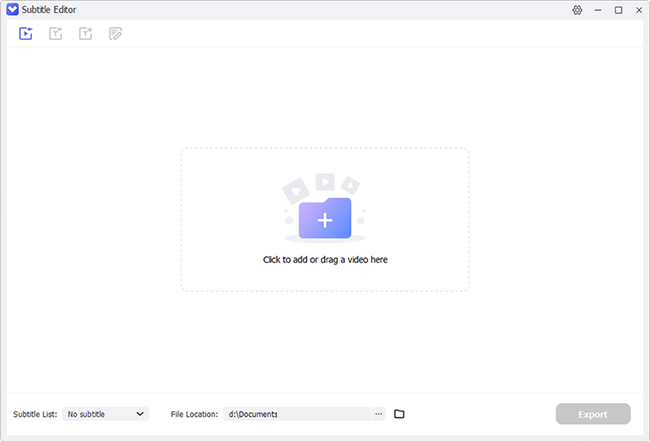
subtitle editor main interface

It's your time to add a video to the program. You can do this by clicking "Import media file" in the upper left corner, hitting the center area, or dragging to drop a video.
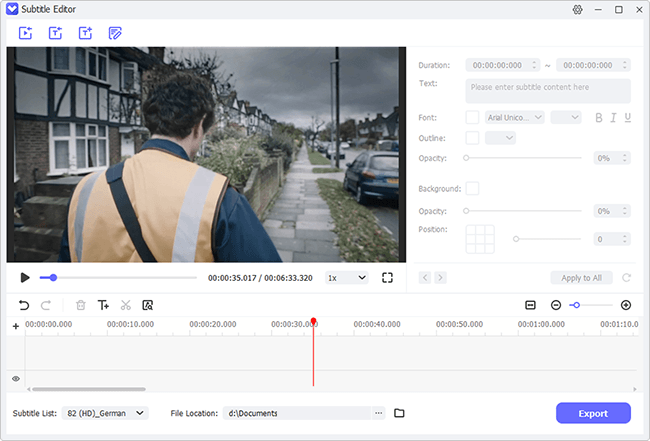
add video to subtitle editor

Step 2 Add Subtitles to Target Video

Method 1. Keep Embeded Subtitle or Download from Subtitle Website: If your video itself comes with subtitle tracks, you can go to the left bottom, click on "Subtitle List" to select a desired subtitle file. Or hit the link-shaped button and visit www.opensubtitles.org to download an online subtitle file.

Method 2. Import Subtitle File from Computer: Go forward to the top left corner and click on the second button called "Import subtitle file". Then browse your local folder and select your target subtitle file to the program for your video.
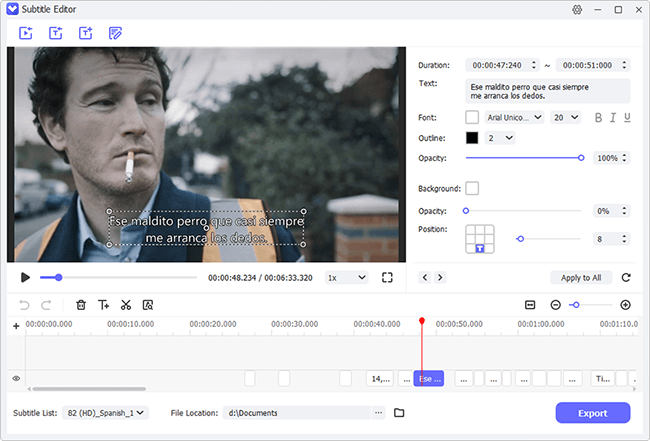
import subtitle file

Method 3. Create New Subtitle: You can create a custom subtitle file by clicking on "New subtitle" on the top menu. This can add a new subtitle file to your Subtitle List on the bottom. You can afterward play your video, stop wherever you want, and use "Create New Subtitle" tool to add your subtitle blocks in the timeline.
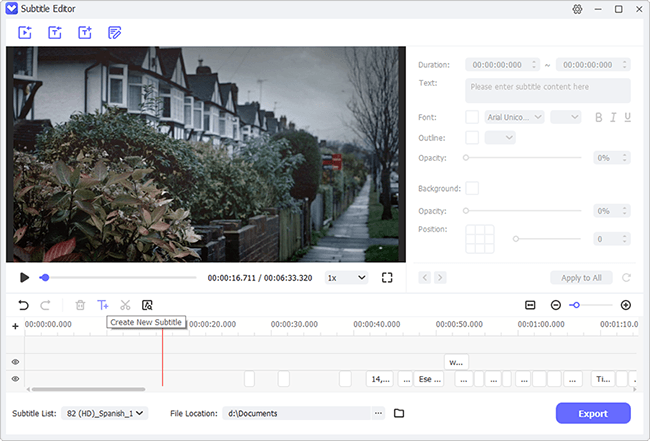
create new subtitle

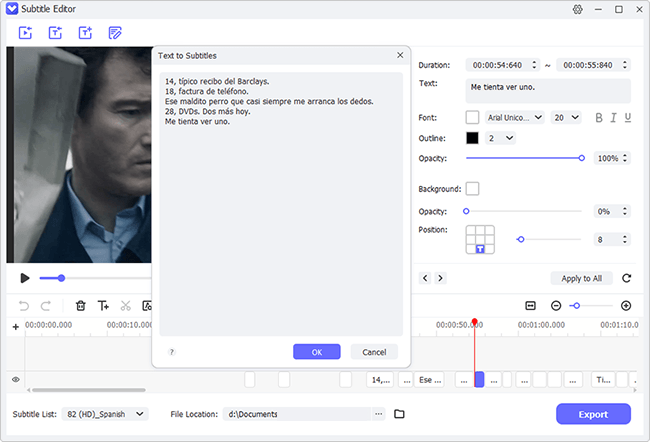
Method 4. Text to Subtitles: Click on "Text to Subtitles" at the top-left corner. In the pop-up window, you can enter or paste long text to create subtitles in bulk. Once everything is checked without problem, click on "OK" to add your subtitles. This generates new subtitle blocks in the timeline as well.
text to subtitle

Step 3 Edit Subtitles for Your Video

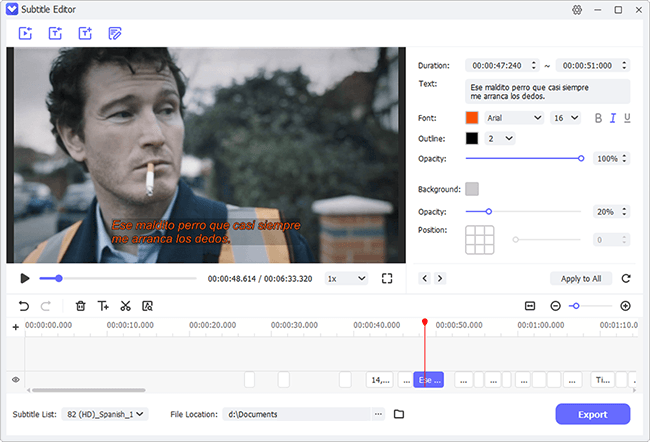
Now you can click to select desired subtitle block in the visualized timeline. In the edit panel on the right, stylize subtitle by customizing duration, text, font, opacity, background, position, and more. To save time, you can click on "Apple to All" so that your editing operations can be applied to all subtitles in the video.
edit subtitle

Step 4 Export Your Video with Subtitles

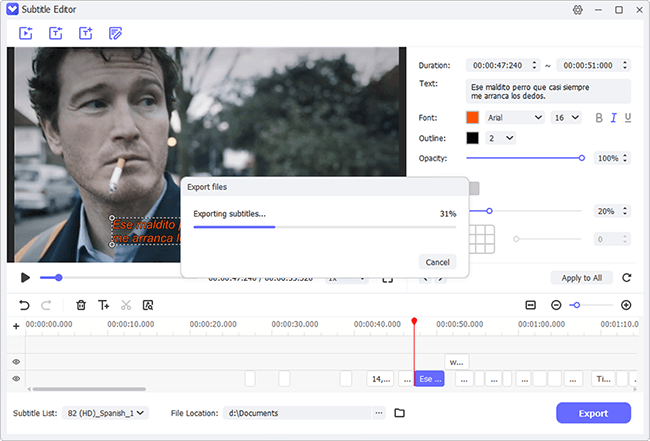
Once all subtitles are adjusted in the way you want, you can click on "Export" button at the bottom to save your video with subtitles on the local computer.

export subtitle
Anikeep logo

Newsletter

Support
  • Support Center
  • How-To
  • Refund Policy
  • Free License
Star Products
  • AI VideoKit
  • AI Video Editor
  • Screen Recorder
Company
  • About Us
  • Terms & Conditions
  • Privacy
  • Contact Us

Copyright © 2026 Anikeep Studio. All Rights Reserved.

Anikeep uses cookies to ensure you get the best experience on our website. Learn More